
Auto Follow-Up Messaging
What it does: When you reply to a member, you can turn on an automatic follow-up cadence. If they don't write back, Coachspect re-
sends your message on a cadence you pick — then stops the moment they reply.
1. Write your reply, then turn on auto follow-up
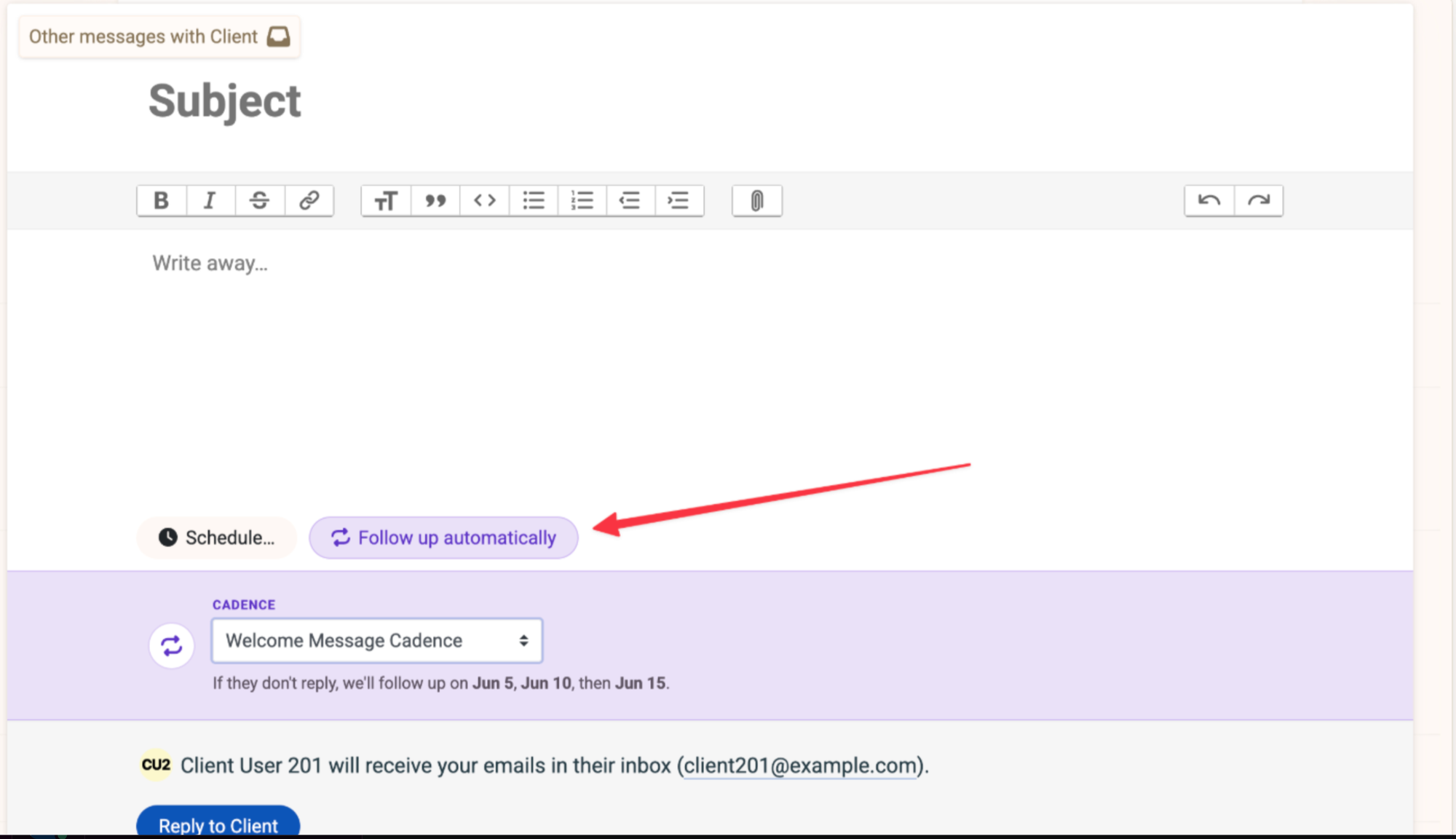
Compose your message like you normally would. Below the message box you'll see a new button — Follow up automatically.
2. Pick a cadence
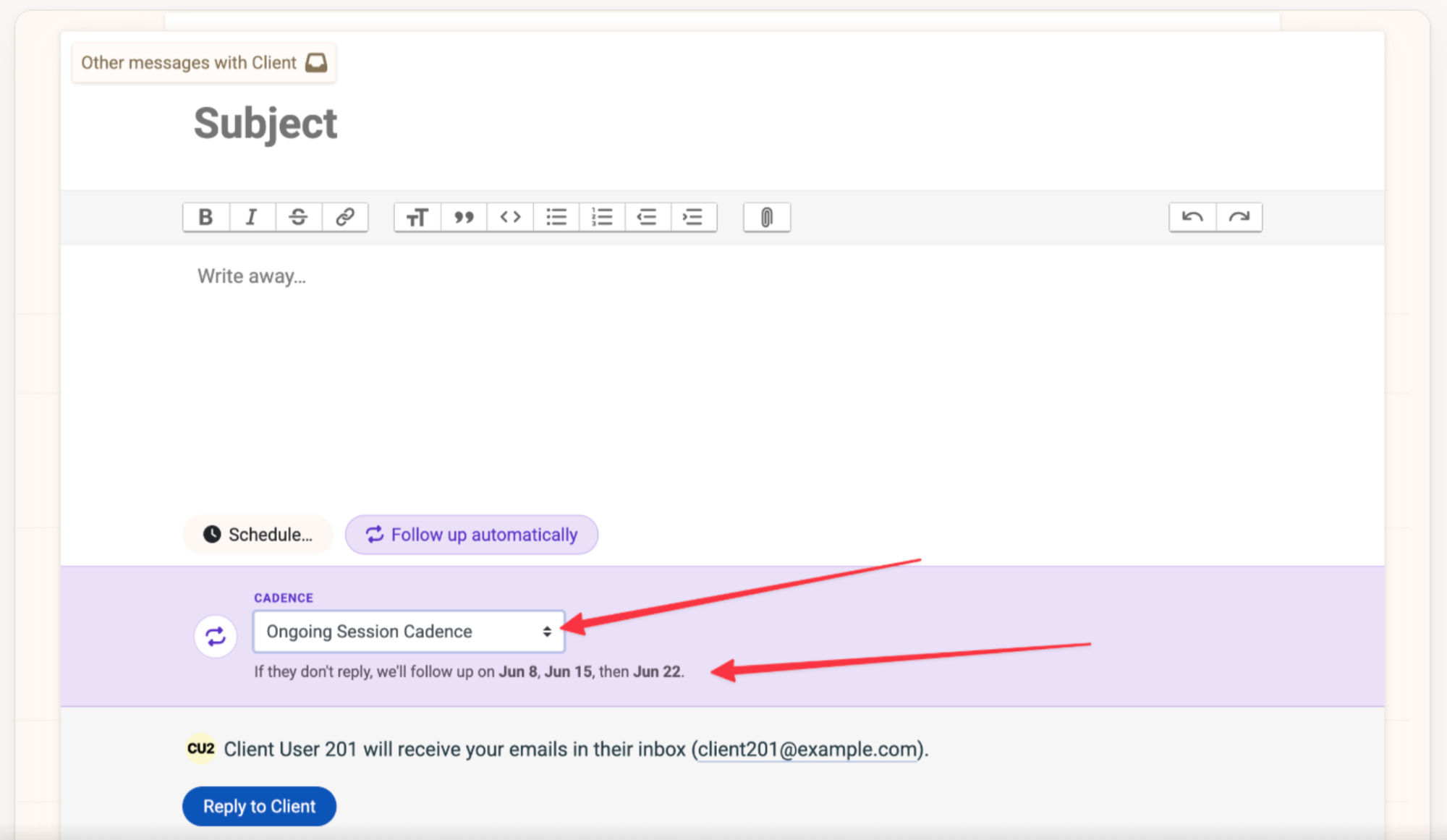
A small panel opens up. Pick a cadence from the dropdown, and Coachspect shows you exactly which days the follow-ups will go out. Follow-ups always land on weekdays.
Welcome Message Cadence is 3,5,5
Ongoing Session Cadence is 5,5,5
3. It runs on its own
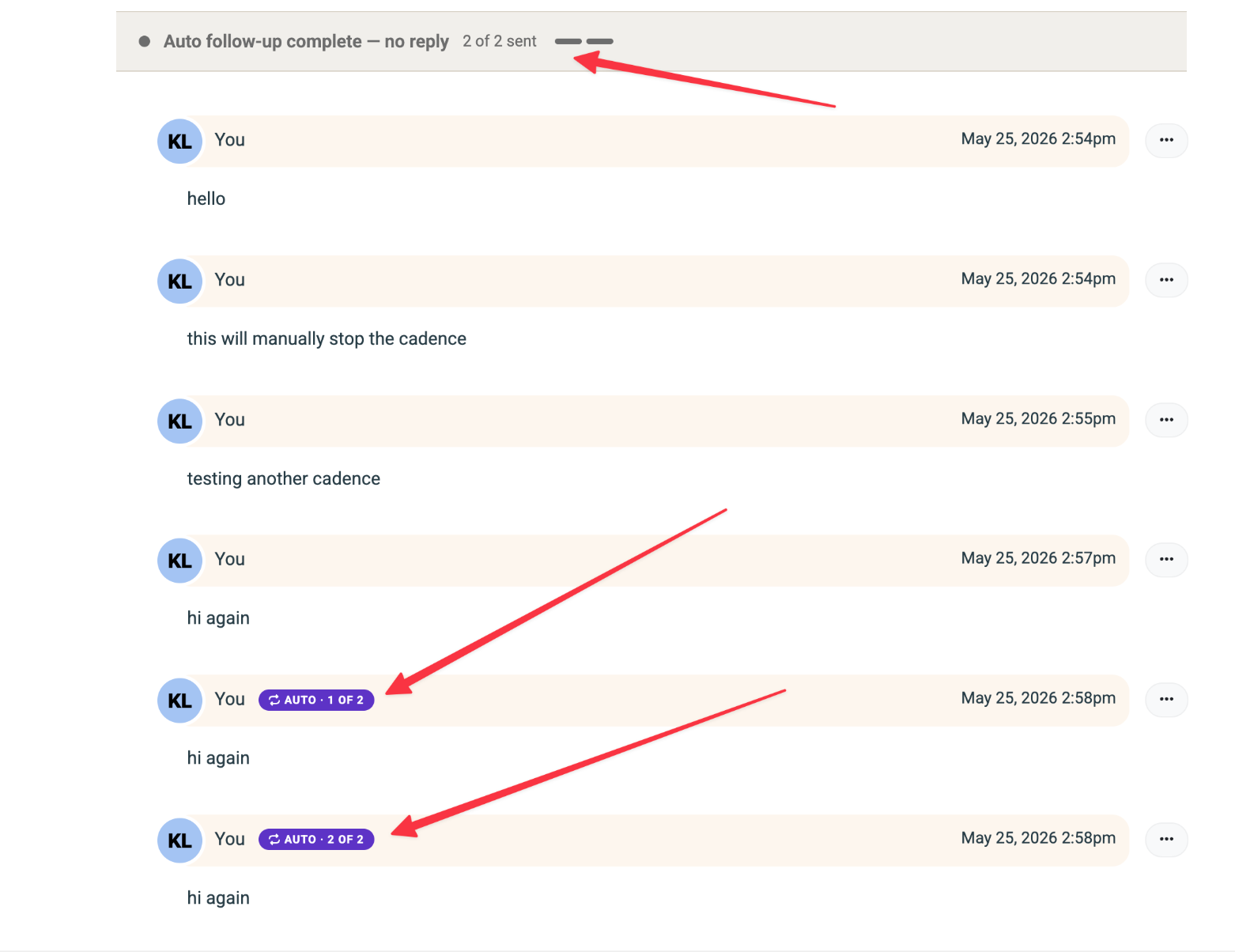
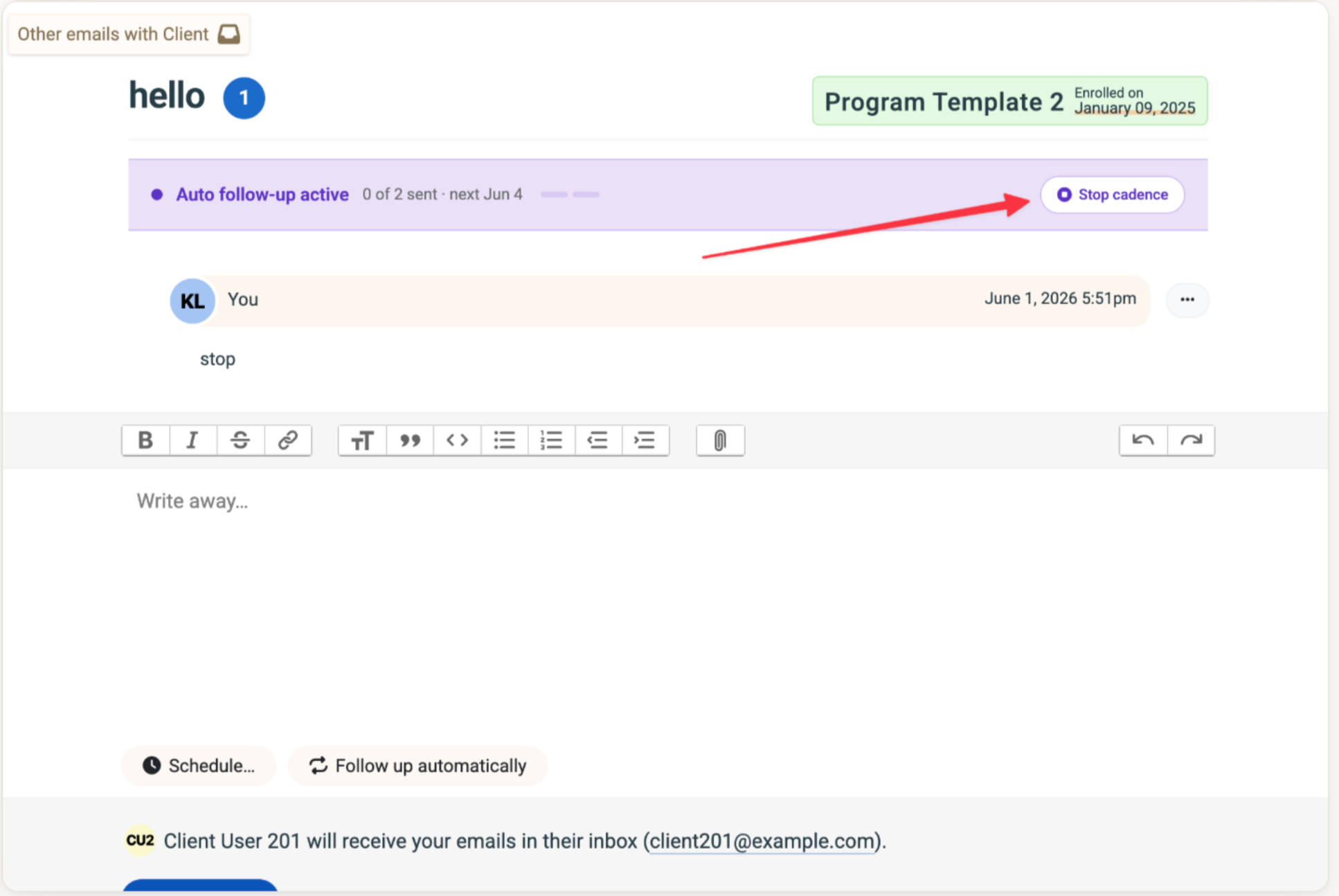
A status banner appears above the conversation so you always know where things stand — how many follow-ups have gone out, and when the next one is due. Each auto-sent message is clearly tagged.
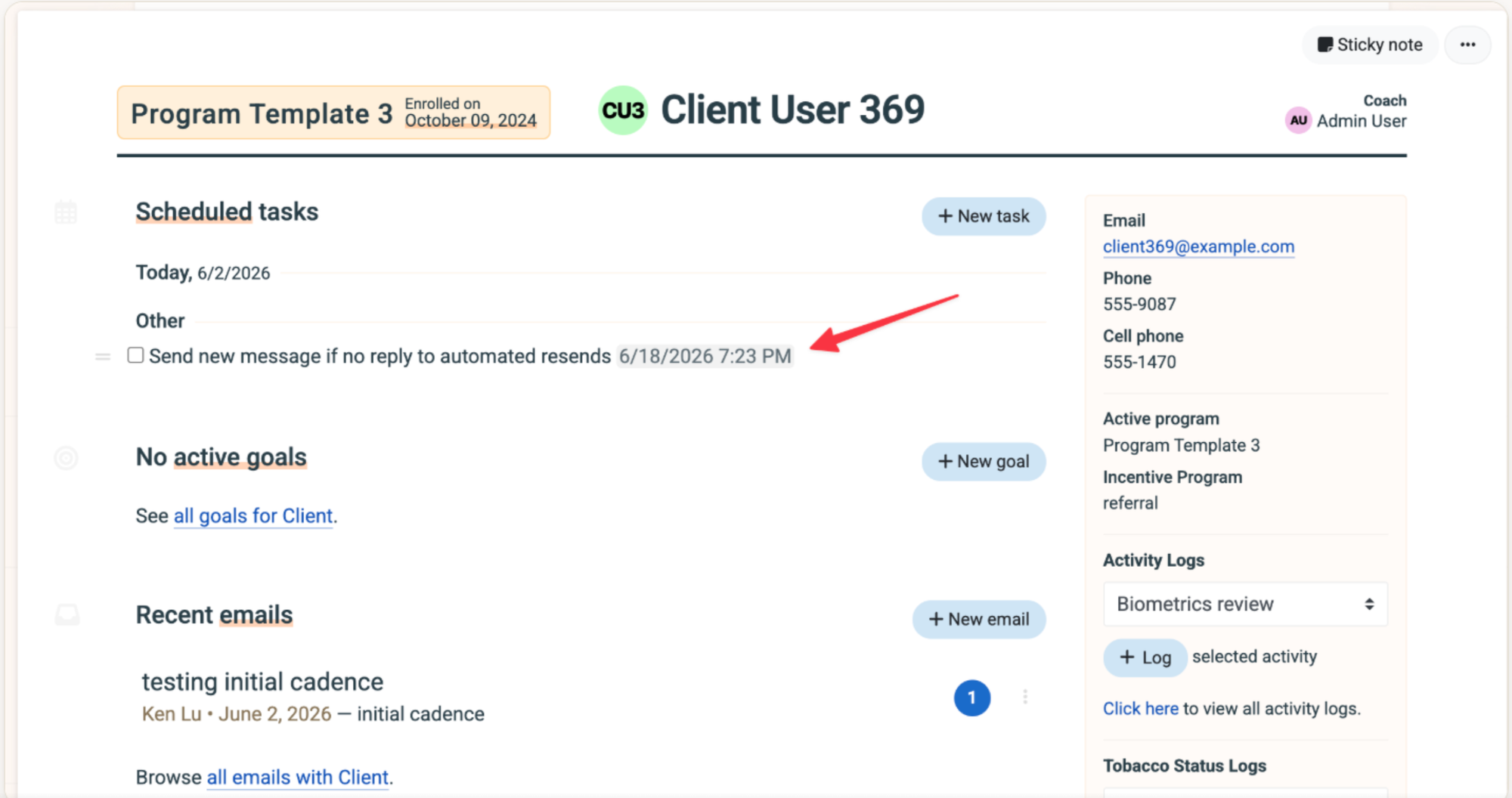
A task is also created as a reminder to follow up with the client when the automatic cadence is first set up. The task is set to 3 days after the final automatic resend so you can create a new thread with new message to engage member.
4. It stops itself at the right moment
The cadence ends on its own in any of these cases — the banner updates to tell you why:
- The client replies. As soon as the client writes back, the cadence stops.
- You send a manual message. If you send a message while a cadence is active, your message stops the cadence.
- All follow-ups go out. Once every scheduled follow-up has been sent, the cadence is complete.
5. Stop it yourself, anytime
Click Stop cadence in the banner. We'll ask you to confirm, and no further follow-ups go out.
Good to know
- Follow-ups only go out on weekdays. If a date lands on a weekend, it shifts to the next business day.
- One cadence per discussion. A discussion can only have one active follow-up running at a time.
- Each follow-up re-sends your original message. Same wording, same attachments.
- OOO messages are ignored and do not stop the cadence.